

Settings
Choose what the extension records, how it looks, and which server it connects to. Open the Settings tab in the panel header. Click a section heading to expand it.
Click Save & validate at the bottom to apply your changes. It also checks the connection and then opens the Runs tab. Only Appearance applies right away.
Settings are saved separately for each Testomat.io server you connect to.
Connection
Section titled “Connection”Shows the server you’re connected to and the current project. See Install and Connect.
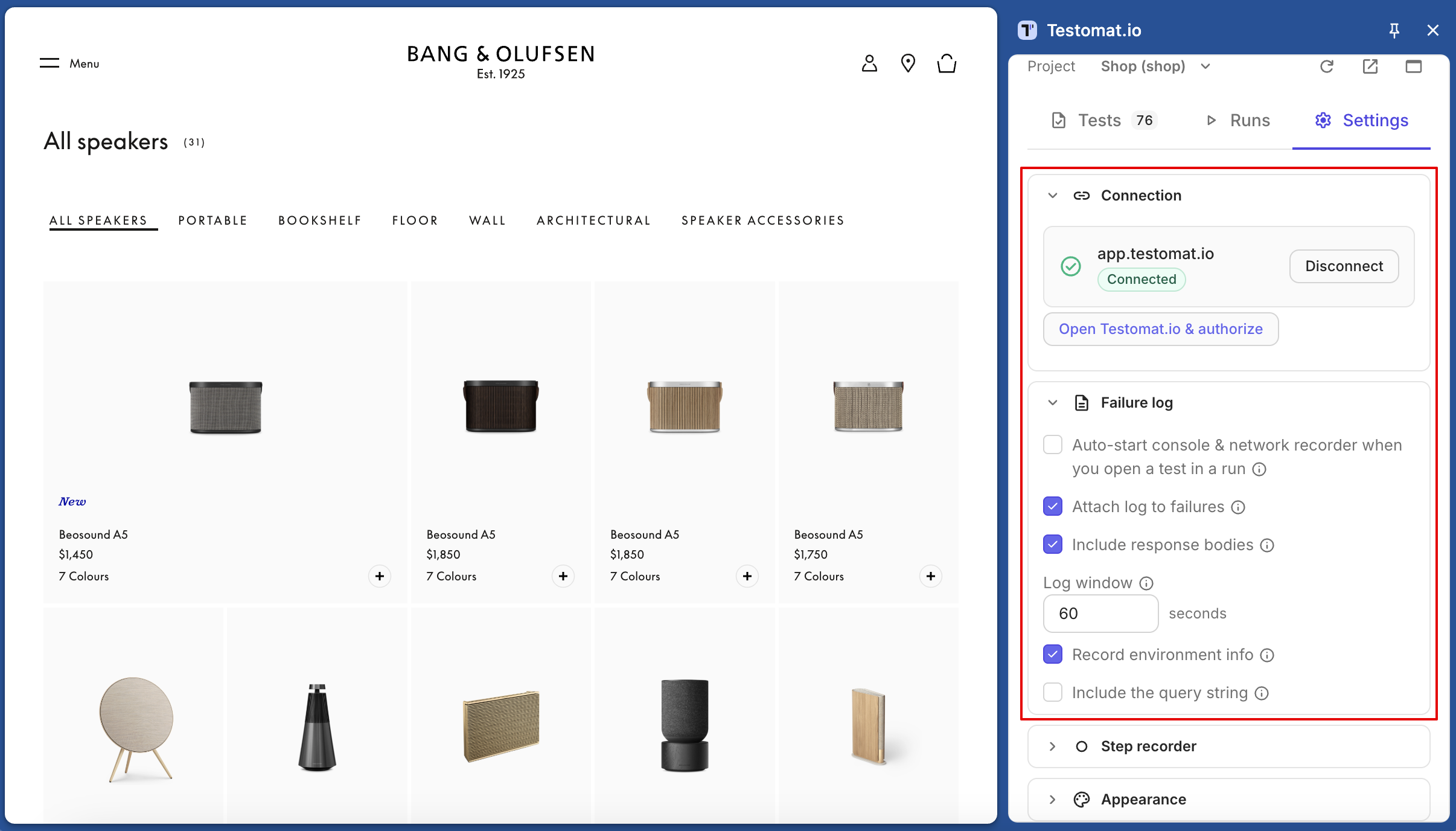
Failure Log
Section titled “Failure Log”Controls what the panel records and attaches when you mark a test Failed. To learn how logging works, see Collect Console and Network Logs.
| Setting | Default | What It Does |
|---|---|---|
| Auto-start console & network recorder when you open a test in a run | Off | Starts Rec when you open a test and stops it when you leave the test |
| Attach log to failures | On | Attaches the log to every test you mark Failed. When off, you can still attach a single log entry with Attach |
| Include response bodies | On | Saves up to 16 KB of the response for failed requests |
| Log window | 60 seconds | How much history the log keeps: from 10 to 600 seconds. Leave it empty for 60 |
| Record environment info | On | Adds the browser, OS, viewport size, and page URL to every result you set |
| Include the query string | Off | When off, URLs are saved without query parameters, so tokens in links stay private. This also applies to the first Open step in recorded steps |
Step Recorder
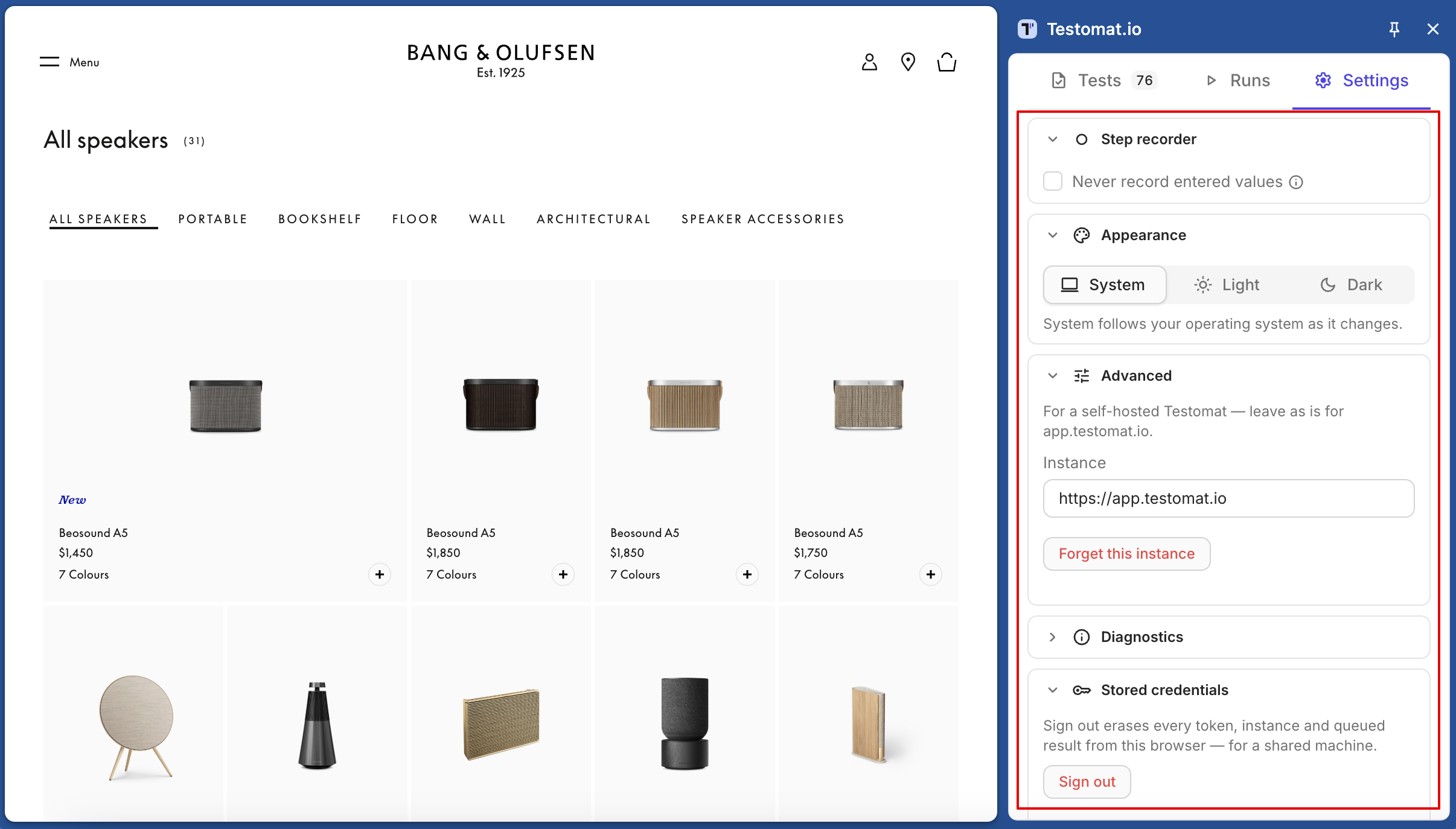
Section titled “Step Recorder”| Setting | Default | What It Does |
|---|---|---|
| Never record entered values | Off | When on, no typed value is saved: steps read Type text into the … field and Select an option in the … dropdown. Turn it on if the website handles real payment or personal data. See Sensitive Values |
Appearance
Section titled “Appearance”Choose System, Light, or Dark. The change stays the same for all projects and servers.
Advanced
Section titled “Advanced”Used only for self-hosted Testomat.io. On app.testomat.io, you don’t need it.
- Instance — your server’s
https://URL. - Pick a saved instance — appears when you’ve saved two or more servers. Choose one and click Save & validate to switch to it.
- Forget this instance — deletes the saved token, project, and settings for this server, after you confirm. If it’s the server you’re using now, its queued results, recorded steps, logs, screen recordings, and unsaved drafts are deleted too, and the panel returns to the connect screen. Other servers aren’t affected.
Diagnostics
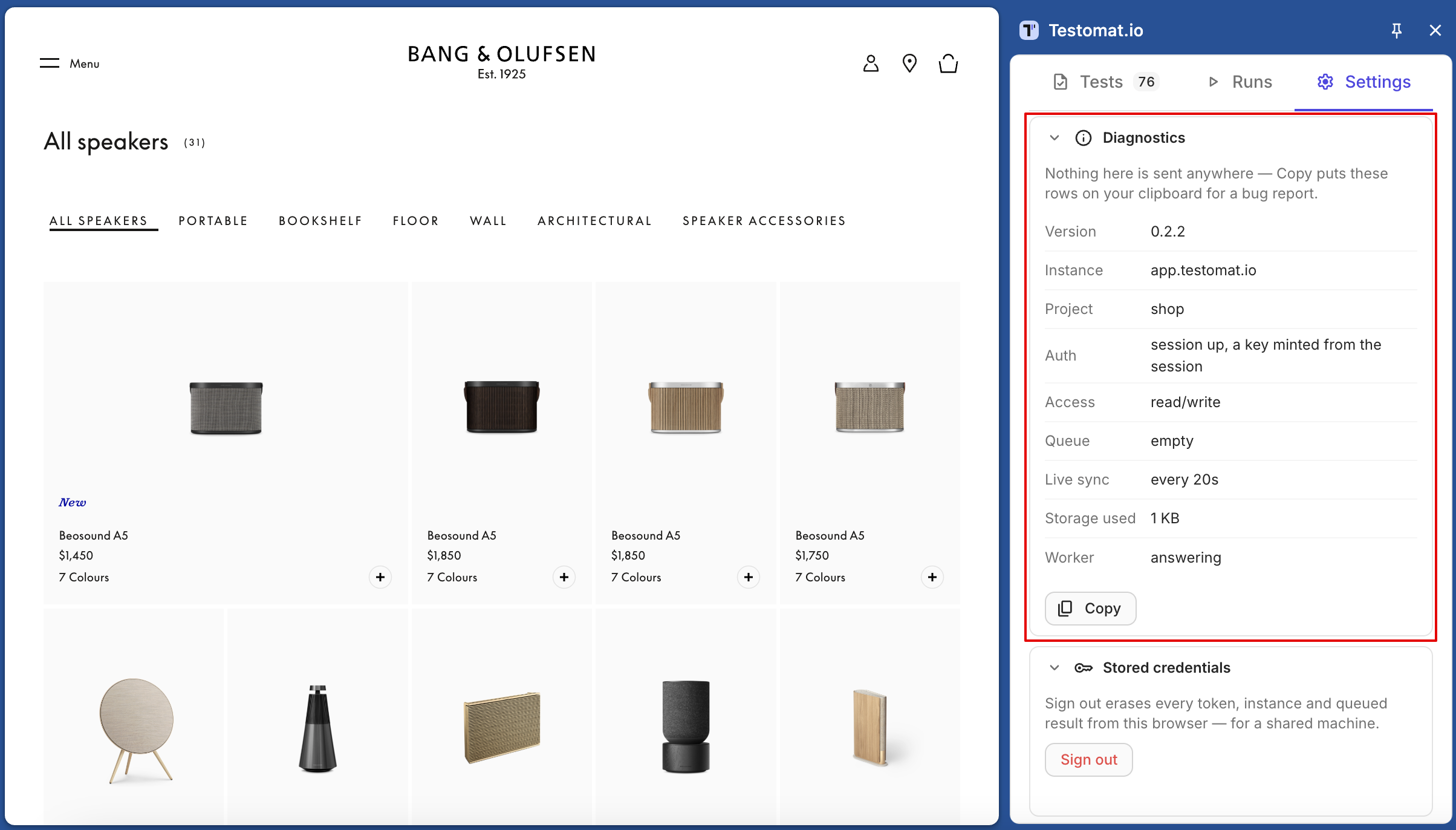
Section titled “Diagnostics”Shows the technical state of the extension in one place. Use it when something doesn’t work as expected, or when you report a bug.
Nothing in this section is sent anywhere. Click Copy to copy all rows to your clipboard, then paste them into your bug report or support request.
| Row | What It Shows |
|---|---|
| Version | The installed extension version |
| Instance | The Testomat.io server the panel is connected to, such as app.testomat.io |
| Project | The current project |
| Auth | How the panel is signed in. If your web session has expired, the panel works in basic mode |
| Access | Your access to the project: read/write, or read-only |
| Queue | Results waiting to be sent. empty means everything is saved in Testomat.io |
| Live sync | How often an open run refreshes |
| Storage used | How much space the extension uses in your browser |
| Worker | Whether the extension’s background process is running. answering means it is |
Stored Credentials
Section titled “Stored Credentials”On a shared computer, click Sign out when you’re done. After you confirm, it deletes all saved tokens, servers, queued results, drafts, recorded steps, logs, and screen recordings from this browser. Your color scheme and panel layout stay.
Side Panel or Window
Section titled “Side Panel or Window”To open the panel in a separate window, for example on a second screen, click Open in window in the panel header. To bring it back, click Dock to side panel. The extension remembers your choice.
Keyboard Shortcuts
Section titled “Keyboard Shortcuts”For shortcuts in an open test, see Run Manual Tests. Alt+Shift+R starts or stops a screen recording from any tab. To change this shortcut, go to chrome://extensions/shortcuts.